Civitas is a premium Divi Layout Pack designed from the ground up for Law Firms, Solo Attorneys, Legal Consultants, and Barristers. With a commanding design language built on trust, authority, and clarity, Civitas turns website visitors into booked consultations.
Whether you run a personal injury firm, corporate law practice, family law office, or criminal defense consultancy, Civitas has everything ready to go – right out of the box.
Requirements
Before importing the layout, make sure you have the following:
- Latest WordPress Installed.
- Divi 5 Theme Installed and Activated.
- Web Hosting Ready.
- Basic WordPress Knowledge.
Important Notes
Before importing the layout, make sure you have the following:
- This layout works only with the Divi 5 Theme.
- Make sure Divi 5 Theme is installed before importing.
- Import process may take 2–5 minutes.
- Do not refresh the page during import.
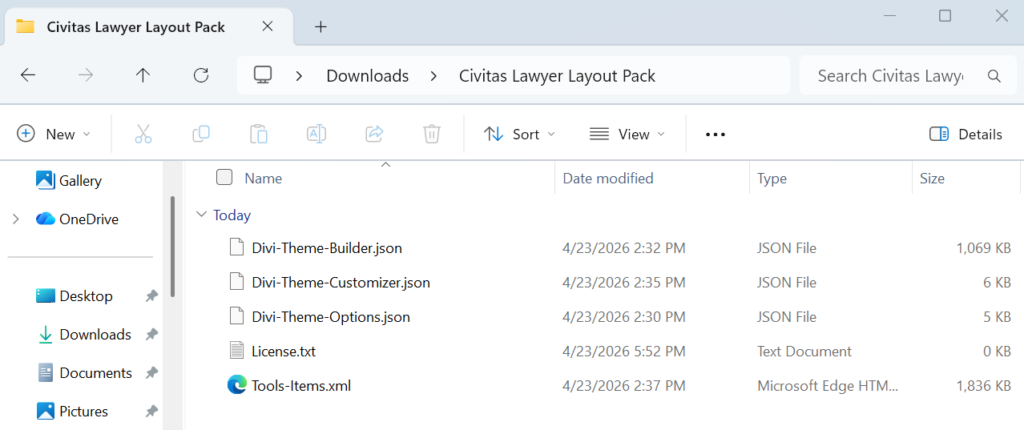
Step 1: File Structure
Upon purchasing the Civitas Lawyer Layout Pack, you will get the following files:
- Divi-Theme-Options.json
- Divi-Theme-Builder.json
- Divi-Theme-Customizer.json
- Tools-Items.xml
- License.txt
Step 2: Import Theme Options
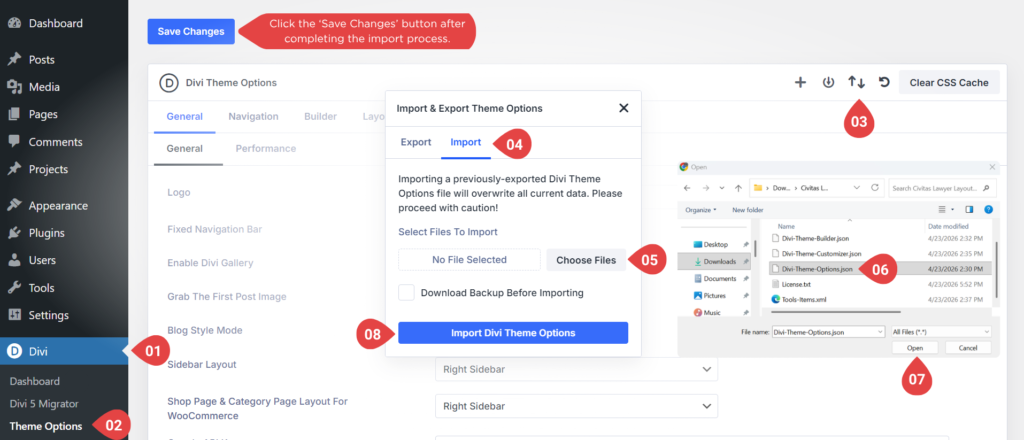
- Go to Divi → Theme Options.
- Click the Portability Icon (Import/Export button).
- Click the Import tab.
- Click Choose File.
- Select the Divi-Theme-Options.json file from the downloaded package.
- Click Import Divi Theme Options.
- After completing all steps, click the ‘Save Changes’ button.
Step 3: Import Theme Builder
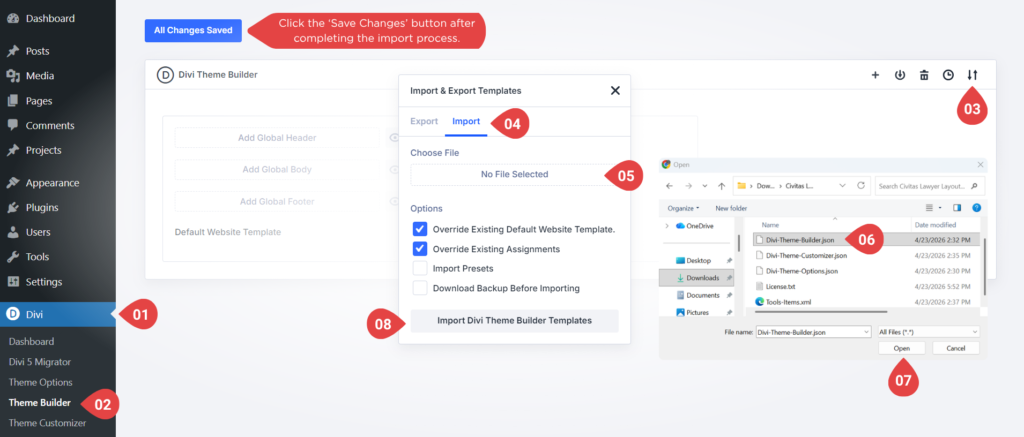
- Go to Divi → Theme Builder.
- Click the Portability Icon (Import/Export button).
- Select “Import” tab from the pop-up.
- Click “Choose File” and select the JSON file from your computer.
- Once the JSON layout is selected, click “Import Divi Theme Builder Templates” and wait for the import process to complete.
- After completing all steps, click the ‘Save Changes’ button.
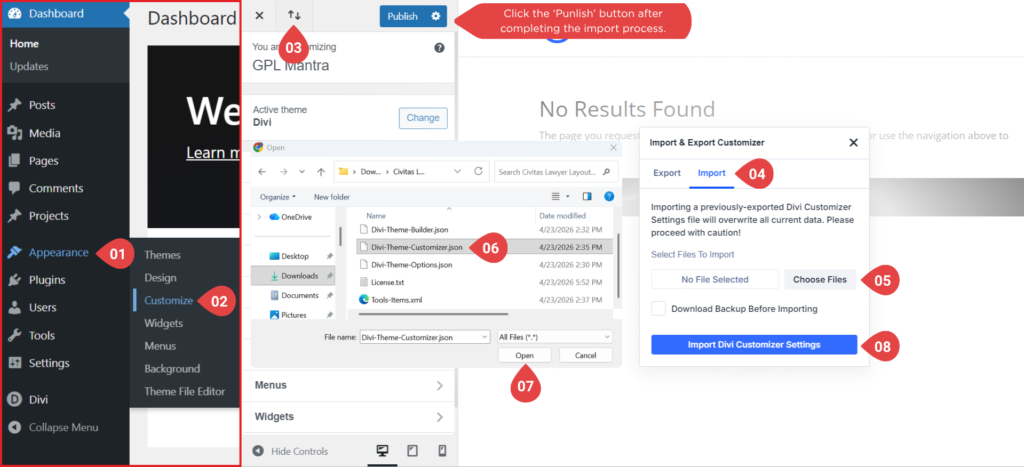
Step 4: Import Theme Customizer
- Go to Appearance → Customize.
- Click the Portability Icon (Import/Export button).
- Select “Import” tab from the pop-up.
- Click “Choose File” and select the JSON file from your computer.
- Once the JSON layout is selected, click “Import Divi Customizer Settings” and wait for the import process to complete.
- After completing all steps, click the “Publish” button.
Step 5: Import Tools Items
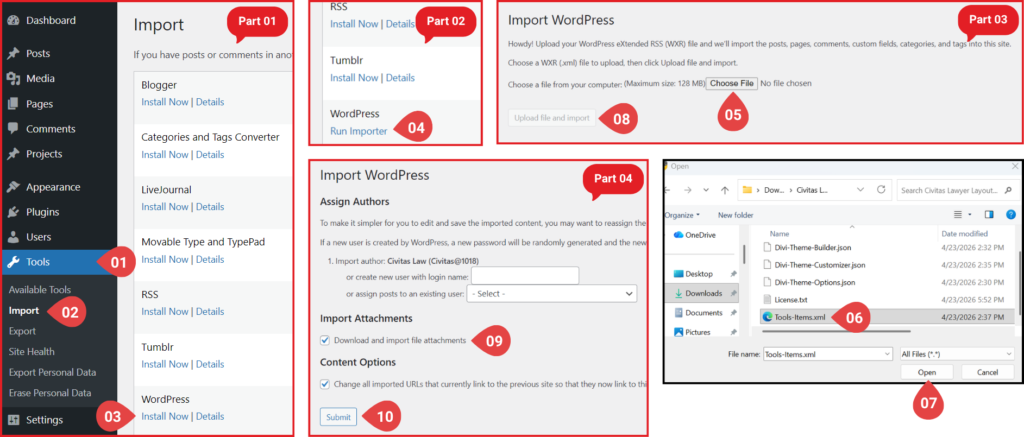
- Go to Tools → Import.
- Click “Install Now” under WordPress.
- Click “Run Importer” under WordPress.
- Click “Choose File” and select the JSON file from your computer.
- Click “Upload file and import” button
- Check mark the box “Download and import file attachments”
- And then click on the “Submit” button
Step 6: Set Home Page
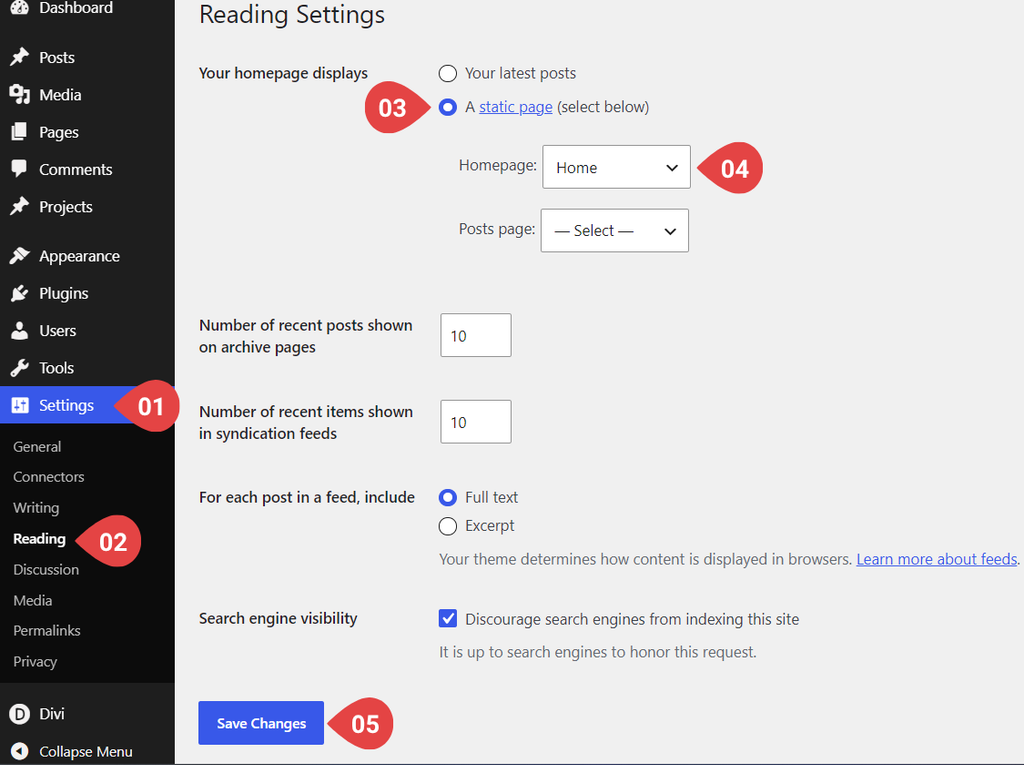
- Go to Dashboard → Settings → Reading.
- Select “A static page (select below)” and then select “Home Page” from dropdown.
- And then click the “Save Changes” button.
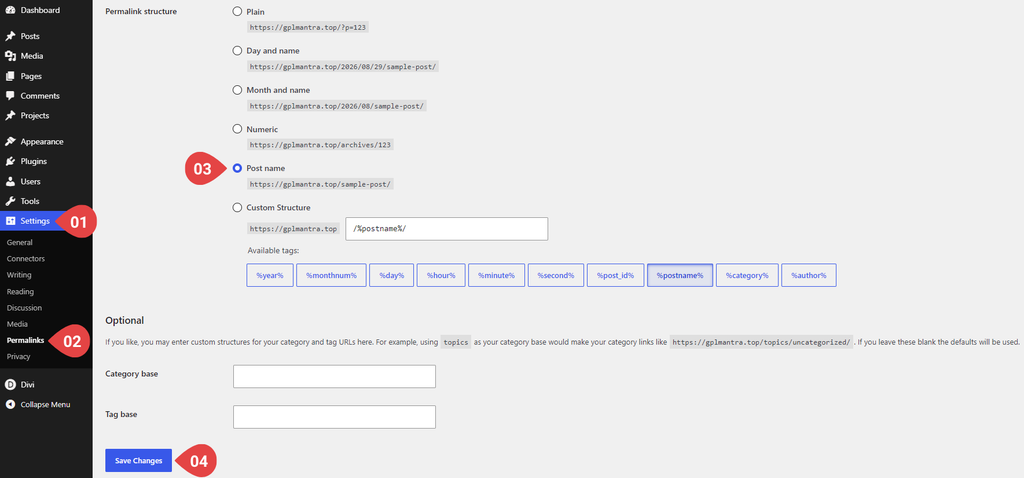
Step 7: Set Permalink
- Go to Dashboard → Settings → Permalink.
- Select “Post name”.
- And then click the “Save Changes” button.