Veloce is a premium, beautifully crafted Divi Layout Pack designed from the ground up for Travel Agencies, Tour Operators, Destination Specialists, Adventure Guides, and Luxury Travel Bloggers. With an immersive, visually driven design language built on exploration, inspiration, and clarity, Veloce turns wanderlust into booked itineraries.
Whether you run a luxury getaway agency, group tour company, local adventure outfit, or destination review blog, Veloce has everything ready to go – right out of the box.
Requirements
Before importing the layout, make sure you have the following:
- Latest WordPress Installed.
- Divi 5 Theme Installed and Activated.
- Web Hosting Ready.
- Basic WordPress Knowledge.
Important Notes
Before importing the layout, make sure you have the following:
- This layout works only with the Divi 5 Theme.
- Make sure Divi 5 Theme is installed before importing.
- Import process may take 2–5 minutes.
- Do not refresh the page during import.
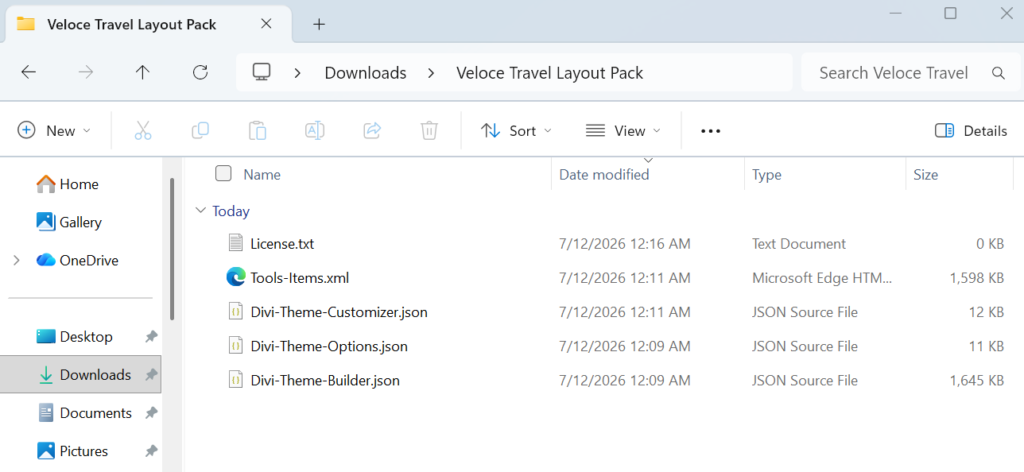
Step 1: File Structure
Upon purchasing the Veloce Travel Layout Pack, you will get the following files:
- Divi-Theme-Options.json
- Divi-Theme-Builder.json
- Divi-Theme-Customizer.json
- Tools-Items.xml
- License.txt
Step 2: Import Theme Options
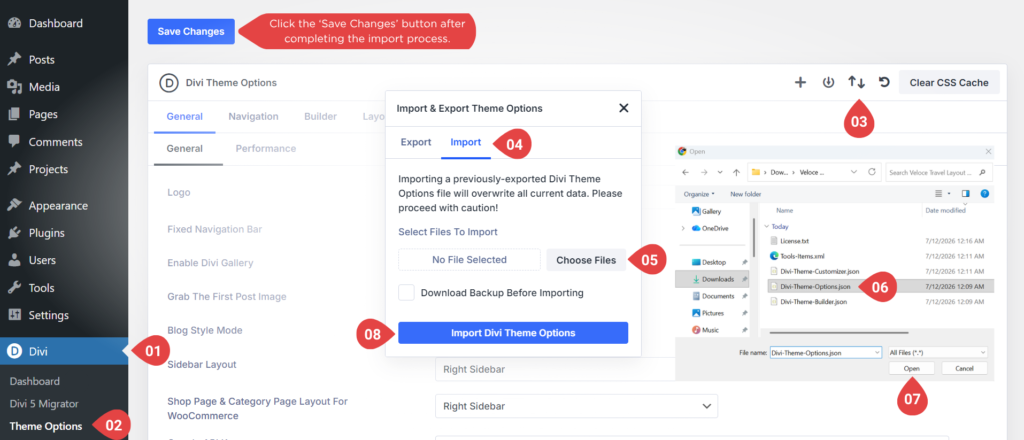
- Go to Divi → Theme Options.
- Click the Portability Icon (Import/Export button).
- Click the Import tab.
- Click Choose File.
- Select the Divi-Theme-Options.json file from the downloaded package.
- Click Import Divi Theme Options.
- After completing all steps, click the ‘Save Changes’ button.
Step 3: Import Theme Builder
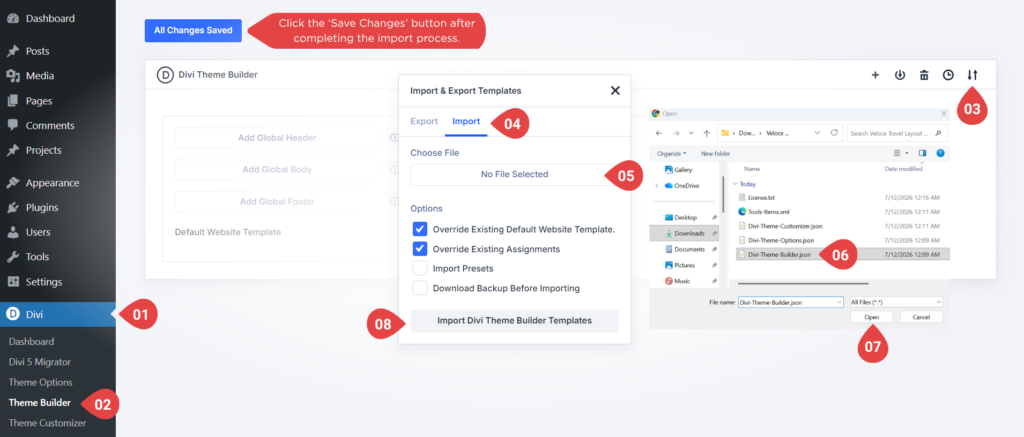
- Go to Divi → Theme Builder.
- Click the Portability Icon (Import/Export button).
- Select “Import” tab from the pop-up.
- Click “Choose File” and select the JSON file from your computer.
- Once the JSON layout is selected, click “Import Divi Theme Builder Templates” and wait for the import process to complete.
- After completing all steps, click the ‘Save Changes’ button.
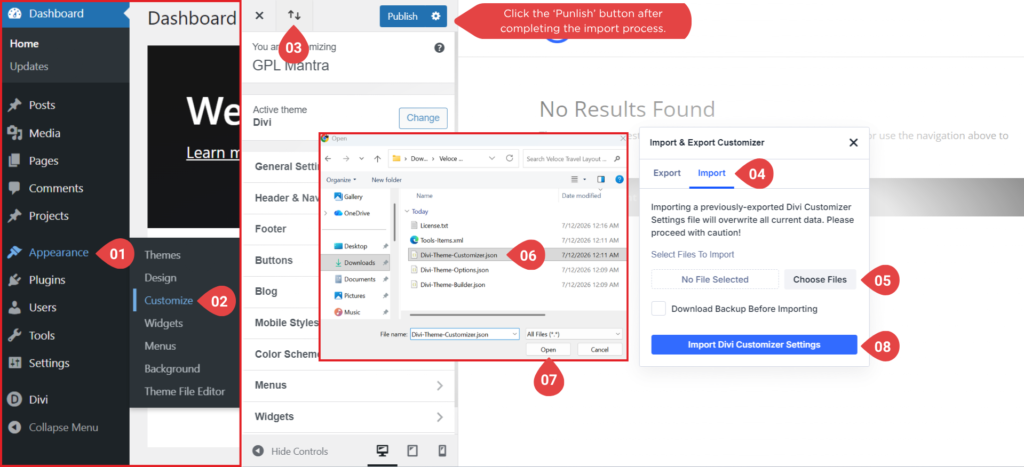
Step 4: Import Theme Customizer
- Go to Appearance → Customize.
- Click the Portability Icon (Import/Export button).
- Select “Import” tab from the pop-up.
- Click “Choose File” and select the JSON file from your computer.
- Once the JSON layout is selected, click “Import Divi Customizer Settings” and wait for the import process to complete.
- After completing all steps, click the “Publish” button.
Step 5: Import Tools Items
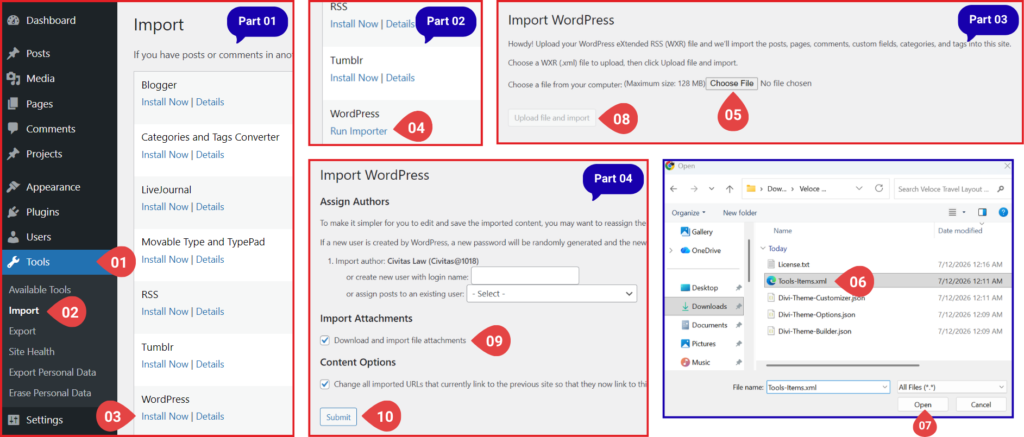
- Go to Tools → Import.
- Click “Install Now” under WordPress.
- Click “Run Importer” under WordPress.
- Click “Choose File” and select the JSON file from your computer.
- Click “Upload file and import” button
- Check mark the box “Download and import file attachments”
- And then click on the “Submit” button
Step 6: Set Home Page
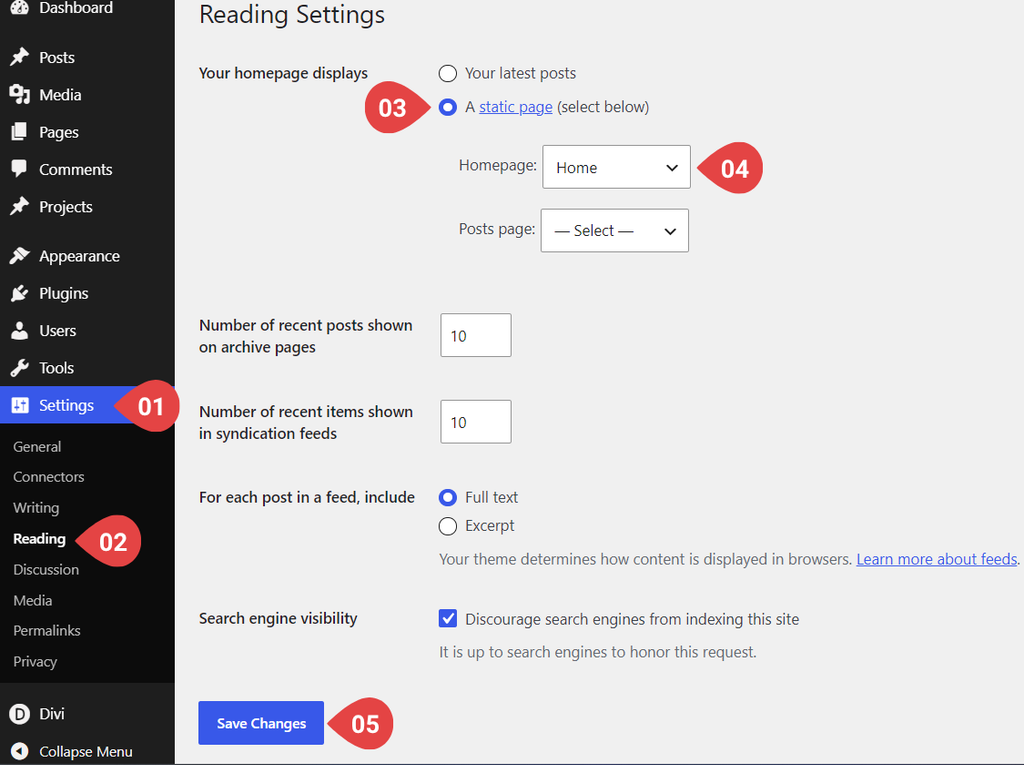
- Go to Dashboard → Settings → Reading.
- Select “A static page (select below)” and then select “Home Page” from dropdown.
- And then click the “Save Changes” button.
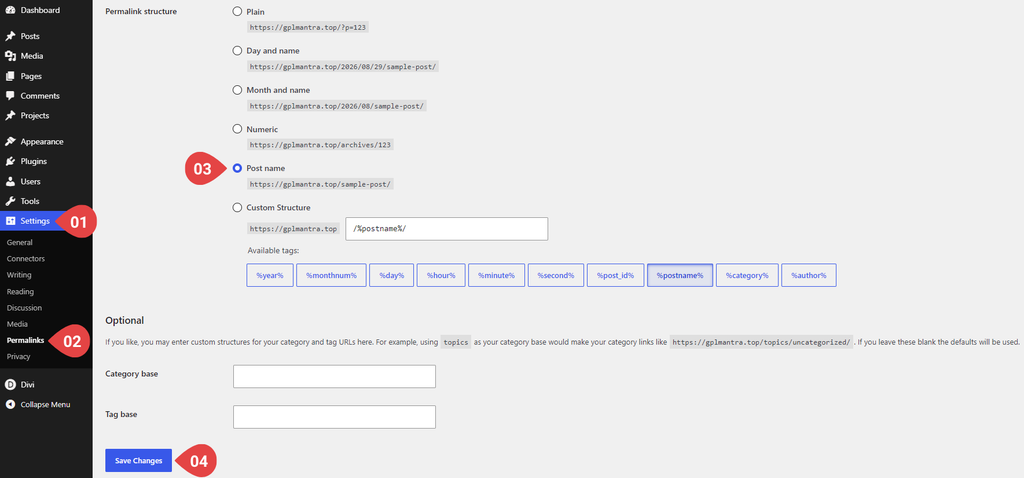
Step 7: Set Permalink
- Go to Dashboard → Settings → Permalink.
- Select “Post name”.
- And then click the “Save Changes” button.